Import Your Expenses — and Run Them Through Approvals
Bring your expense history into Quanta from any tracker with one CSV, then submit, approve, and reimburse — with only approved expenses reaching your client invoices.
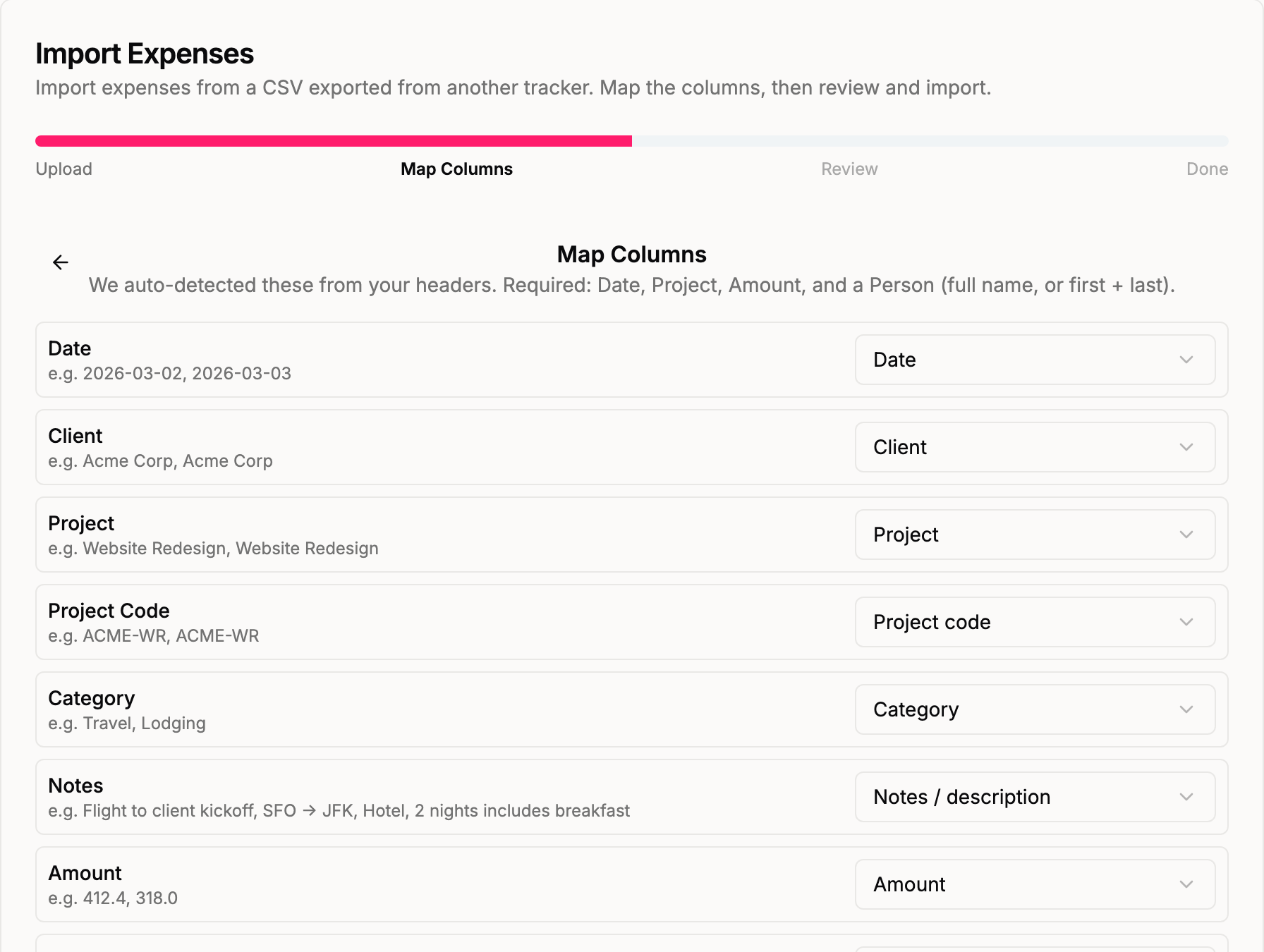
A while back Quanta learned to track expenses and mileage alongside your time. Two things were still missing: an easy way to bring in the expenses you'd already logged somewhere else, and a way to review expenses before they hit a client invoice. Both are here now — a flexible expense importer and a full approval + reimbursement workflow.
Bring your expenses in from anywhere
Open Import (/admin/import) and choose Expenses. Drop in a CSV exported from just about any tool — and Quanta walks you through three steps: upload → map columns → review.
The importer doesn't assume your file looks a particular way. After you upload, it reads your actual headers and shows a column-mapping step: each column from your file, with a dropdown to say what it is in Quanta — Date, Project, Amount, Category, the person who incurred it, Billable, Reimbursable, and so on. It auto-detects the common header names for you, but you can re-point anything. The only fields it needs are Date, Project, Amount, and a Person (either a single full-name column, or separate first/last columns).
Because the mapping is explicit, a file with columns named txn_date, staff, engagement, gross_amount works exactly as well as one with tidy, expected headers — you just tell Quanta which is which.
Review before anything is saved
The review step shows you precisely what will happen: how many rows are importable, how many are duplicates of expenses you already have, and how many have errors. It also reads back the flags it found — for example "From your file: 13 billable · 13 reimbursable · 2 invoiced · 10 approved" — so you can confirm the columns mapped the way you expected.
Projects, clients, and categories are matched by name and created when they're new. If a project matched the wrong one, re-point it — or force a brand-new project — right from the review screen.
People, handled like the time importer
Names in an expense export rarely line up perfectly with your Quanta team. For every unmatched person you get the same options as our time-entry import: map them to an existing user, create a new user and invite them, create a deactivated user (keeps their expense history without granting access), or ignore their rows. There's an email-template helper too — type {first}.{last}@yourcompany.com, hit Apply to all, and everyone being created gets a sensible address.
Approved, or draft?
If your file has an Approved column, it maps straight onto Quanta's approval status: approved rows come in Approved, the rest land as Draft. Migrating settled history and want it all treated as done? Flip Mark all as approved and every imported expense comes in approved. Re-running the same file is safe — duplicates are detected and skipped.
Submit, approve, reject
Once expenses are in Quanta — imported or logged by hand — they move through a simple approval flow: Draft → Submitted → Approved or Rejected.
- The person who owns an expense submits it for approval.
- A project Lead or Manager (or an admin) approves it, or rejects it with a reason so the owner knows what to fix and can resubmit.
- Submitted and approved expenses are locked from editing, so numbers don't drift after sign-off.
The Expenses list shows an Approval badge and a Person column (who incurred it — that's who gets reimbursed), and you can filter by state: Draft, Awaiting approval, Approved, or Rejected.
Approvals come with in-app notifications: submitting pings the project's leads and your admins, and approving or rejecting notifies the owner.
Only approved expenses can be invoiced
This is the part that makes the workflow worth having. When you pull expenses onto a client invoice, the picker now offers only approved expenses. Drafts, submitted-but-not-yet-approved, and rejected expenses simply don't appear — so nothing reaches a client before someone has signed off on it.
Track what you owe your team
Separate from billing the client is paying back the person who spent the money. Mark an expense Reimbursable (it's a field on the expense form, and it imports from a Reimbursable column if your file has one), and it shows up as Reimbursable · Pending until it's paid. When finance pays it out, an admin marks it Reimbursed. Filter the list to Reimbursable · unpaid to see exactly what's still owed.
Do it in bulk
Approving expenses one at a time gets old fast. Select expenses with the checkboxes and a bar appears with Submit, Approve, Reject, Mark reimbursed, and Mark pending — applied to everything you've selected, with a quick summary of how many were updated.
In short
Get your expense history into Quanta from any CSV, decide exactly how each column and person maps, and then run every expense through approvals before it's billed — with reimbursements tracked the whole way. It's the same review-before-you-commit philosophy as our time import, now for the money you spend on a project, not just the hours.
Questions or a tracker we should support out of the box? Email support@quanta.is.
— The Quanta team