Log Time from Jira Issues (Beta)
A Quanta panel in every Jira Cloud issue. Pick a project, type a duration or start a timer, and the entry lands in Quanta linked back to the issue. It is in beta, on every paid plan.
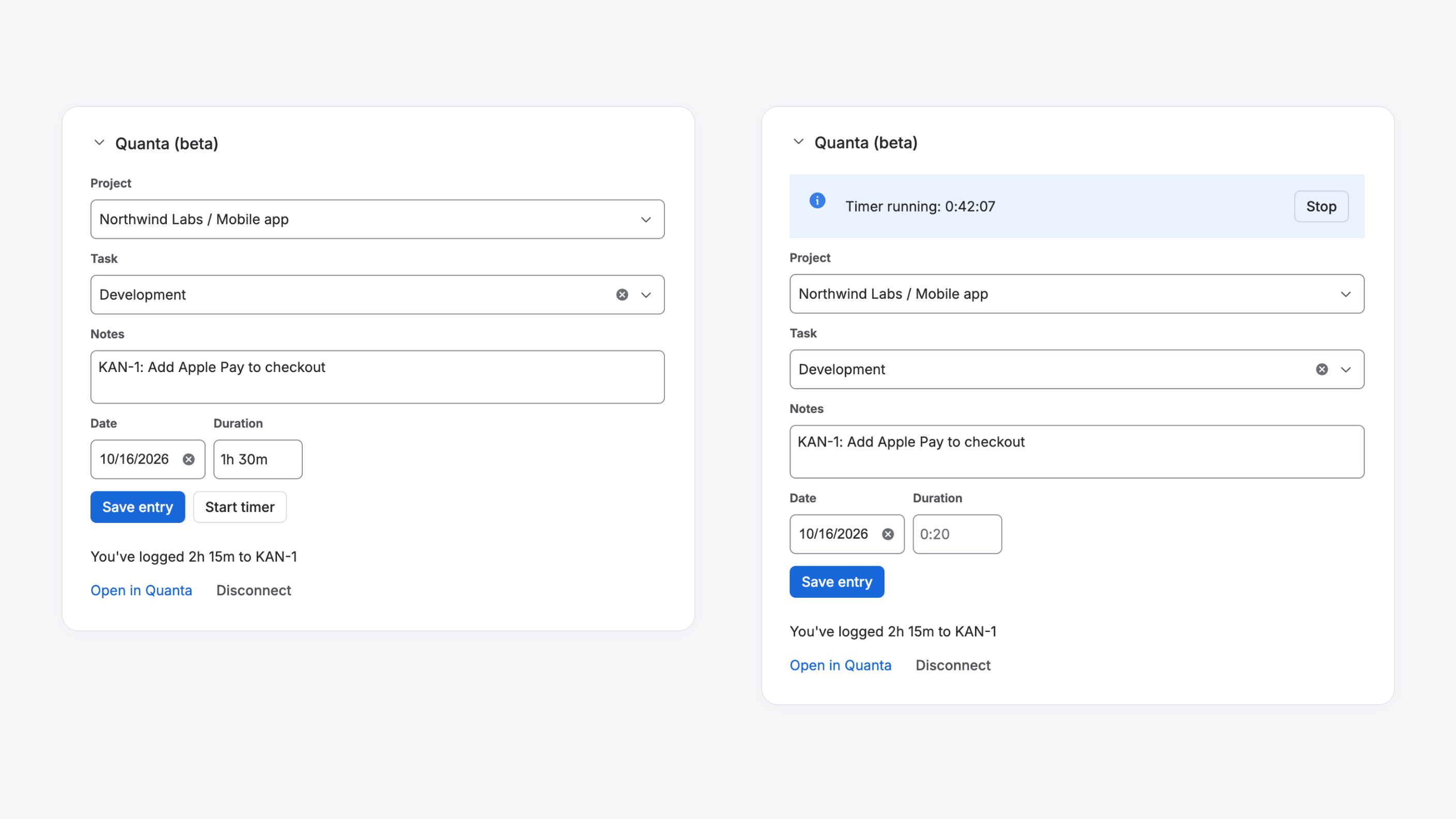
If your team plans its work in Jira, the issue is where you are when the work happens. Switching to another tab to log the time is the step that gets skipped, and the hours get reconstructed on Friday from memory. Our new Jira app puts Quanta inside the issue: a panel on every Jira Cloud issue where you log time, or start a timer, without leaving it.
It is in beta. Here is how it works.
Why beta
The app is new. It has been tested end to end on a real Jira site, connecting, logging, timing and disconnecting, but it has not had months of daily use behind it yet. Check the first few entries you log from Jira, and tell us if anything looks off: press Report a problem on the Jira page in Quanta, or write to support@quanta.is.
Install it once per Jira site
A Jira site admin installs the app, once. In Quanta, open Settings, then Integrations, then Jira, and press Install in Jira. Choose your Jira site and click Install. From then on, every issue on that site has a Quanta (beta) panel.
The app is available on every paid plan: Individual, Team and Business.
Connect your own account
Installing the app does not log anyone in. Each person connects their own Quanta account, so every entry is logged as the person who did the work, with the permissions they already have.
- Open any issue and expand the Quanta (beta) panel.
- Click Connect to Quanta. Jira asks before opening an outside page; continue, and Quanta opens in a new tab.
- Sign in if you are not already, and Quanta asks: allow Jira to log time as you in your workspace? If you belong to more than one workspace, you can pick a different one right there.
- Click Allow, and go back to Jira. The panel picks up the connection within a few seconds.
You connect once per Jira site. After that the panel is ready on every issue.
Log time from the issue
The panel has everything an entry needs:
- Project, searchable, and Task when the project has tasks. Your choice is remembered per Jira project, so the next issue in the same project starts with it already picked.
- Notes, filled in from the issue for you, like "KAN-1: Add Apple Pay to checkout". Change it if you want. The issue key in the notes keeps the entry readable on timesheets and invoices.
- Date and Duration. Type it the way you think of it:
0:20,1.5or1h 30m.
Press Save entry, and the panel tells you how much you have logged to that issue so far.
Or run a timer
Prefer to time it? Press Start timer and the panel shows the clock ticking. Press Stop when you are done and the entry is saved. It is the same timer you have everywhere else in Quanta, so if one is already running on something else, the panel says so, and starting a new one stops it.
Every entry links back to the issue
Entries logged from Jira carry the issue with them. In Quanta, they show a small chip with the issue key, on your timer list, the weekly timesheet breakdown, the project's time entries and the detailed report. Click it and the issue opens in Jira.
Who is connected, and disconnecting
The Jira page in Quanta's settings lists the Jira sites you have connected, with when each was connected and last used. Disconnect stops the panel logging time as you straight away. Time you already logged stays in Quanta, and you can connect again from any issue. You can also disconnect from the panel itself.
Admins see one more card, Who's connected: everyone in the workspace who logs time from Jira, and on which site.
What the app keeps
The app keeps the least it can. Your Quanta connection is stored encrypted in Atlassian's own app storage, along with the last project you picked in each Jira project. When you log time, Quanta receives the entry with the issue key, title and link. Nothing else from Jira is copied.
What the beta does not do yet
- Time stays in Quanta. It is not copied into Jira's own work log.
- It works with Jira Cloud only.
Tell us what you need next.
Try it
It is available now. A Jira site admin starts at Settings, then Integrations, then Jira, in Quanta. Then everyone connects from any issue.