Send Your Invoices Straight to QuickBooks Online
Connect your QuickBooks Online company and Quanta pushes each invoice — matched to the right customer, tax code, and product — the moment you send it. It's live for every Quanta workspace.
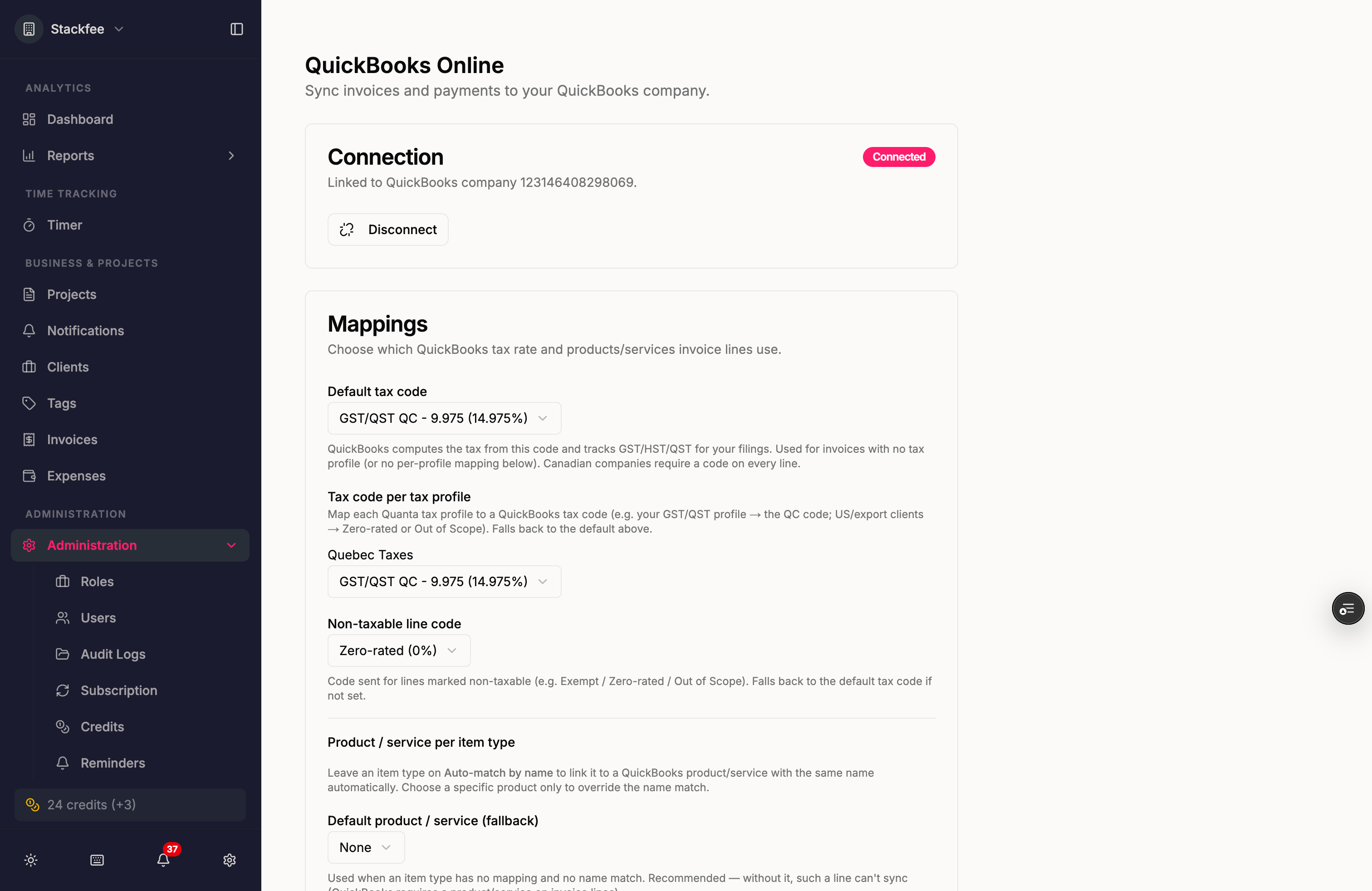
You bill your clients in Quanta. You keep your books in QuickBooks. Until now, that meant re-keying every invoice into QuickBooks by hand — or exporting, importing, and reconciling the mismatches. Our new QuickBooks Online integration closes that gap: connect your QuickBooks company once, and each invoice you send in Quanta shows up in QuickBooks automatically, with the right customer, tax, and totals already in place.
It's available now to every Quanta workspace — connect it in a couple of clicks. Here's how it works.
Connect once, per workspace
Head to Settings → Integrations → QuickBooks Online and click Connect to QuickBooks. You'll log in at Intuit, pick which QuickBooks company to link, and approve — the standard QuickBooks connection flow. Come back and the panel shows Connected, linked to your company. Each Quanta workspace connects its own QuickBooks company, and only workspace admins can set it up.
Invoices flow one way — Quanta to QuickBooks
Quanta stays the source of truth for your invoices. QuickBooks never pushes an invoice back at you and never overwrites what you've built here. The sync is deliberately one-way: Quanta → QuickBooks.
By default, auto-sync on send is on — the moment you send an invoice (or mark it as sent), Quanta pushes it to QuickBooks in the background. Sending is never blocked by QuickBooks: the invoice goes to your client immediately, and the sync follows behind it. Prefer to sync deliberately? Turn auto-sync off and use the Sync to QuickBooks action on each invoice instead.
The one rule we hold to: the QuickBooks invoice total always exactly equals the Quanta total. Line amounts, tax, and discounts carry over so your books never drift by a cent from what your client received.
Every invoice knows its own sync status
Open any invoice and you'll see a small badge:
- QB: Not synced — hasn't been pushed yet
- QB: Synced — it's in QuickBooks and matches
- QB: Edited — you changed it in Quanta since the last sync; re-sync when you're ready to push the update
- QB: Error — something went wrong; hover or open the invoice to read the actual QuickBooks error
Because Quanta-side edits don't silently overwrite QuickBooks, an invoice your accountant may have touched stays put until you explicitly hit Re-sync to QuickBooks. When a sync fails, the error message is the real one from QuickBooks — fix the cause, re-sync, and the badge flips to green. If the failure is a customer-name mismatch, the fix is right there in the error: link the client to the right QuickBooks customer and the invoice re-syncs immediately.
Customers, matched or created
When an invoice syncs, Quanta resolves its client to a QuickBooks customer. It matches on an exact, case-insensitive name — no fuzzy guessing, because linking to the wrong customer is expensive to unwind. If there's a match, the two are linked for good. If there isn't, Quanta creates the customer for you (you can switch auto-create customers off if you'd rather every invoice map to a customer that already exists in QuickBooks).
And when the names just don't line up — "Rivertown Design Co." in Quanta, "Rivertown Design" in QuickBooks — you can link the client to the right QuickBooks customer yourself. Do it straight from the sync error on the invoice (pick the customer, and the invoice re-syncs on the spot) or from the QuickBooks tab when editing the client. A manual link overrides name matching for good, so that client never errors on a name mismatch again.
Tax codes that keep your filings clean
Copying a tax amount keeps totals right, but it doesn't help QuickBooks track what you owe. So Quanta maps to native QuickBooks tax codes:
- Pick a default tax code for invoices that don't carry a specific tax profile.
- Map each of your Quanta tax profiles to a QuickBooks tax code — a US sales-tax code, your GST/QST profile to the right provincial code, or export clients to Zero-rated / Out of Scope.
- Set a non-taxable line code for anything exempt.
Quanta reads the tax codes that already exist in your QuickBooks company, so the list is whatever your books use — US sales tax, GST/HST/QST, or VAT. QuickBooks then computes the tax from the code you chose and records it natively the way your accountant expects — while your invoice total still matches Quanta to the penny.
US companies on Automated Sales Tax: QuickBooks may calculate sales tax from the customer's address on its own. The mapping still applies for companies using manual or custom tax codes.
Products and services, by item type
Every QuickBooks invoice line points at a product or service, which is how revenue lands in the right income account. Quanta maps this from your invoice item types. Leave an item type on Auto-match by name and it links to a QuickBooks product or service with the same name automatically; choose a specific product only when you want to override that. A default product/service acts as the catch-all so a line always has somewhere to go.
The options, in one place
On the QuickBooks panel you can toggle:
- Auto-sync invoices on send — push automatically, or sync by hand.
- Auto-create customers — create missing customers, or require existing ones.
- Project sub-customers — file single-project invoices under a QuickBooks sub-customer (
Client : Project) for per-project profitability inside QuickBooks. - Sync payments to QuickBooks — when you record a payment in Quanta, post it against the matching QuickBooks invoice.
- Let QuickBooks assign invoice numbers — by default Quanta pushes its own number so the two match; flip this on to let QuickBooks number its own.
A few things worth knowing
It's new, so a couple of honest notes before you flip it on:
- Invoices and payments flow one way into QuickBooks — changes you make in QuickBooks don't come back to Quanta.
- QuickBooks requires a product/service on every line, so set at least a default product before your first sync.
- You'll connect against your real QuickBooks Online company, so start with a client or two before you turn on auto-sync for everything.
Turn it on
Head to Settings → Integrations → QuickBooks Online, click Connect to QuickBooks, pick your company, and set your tax and product mappings. From there, every invoice you send flows into your books automatically.
Questions, or a tax setup you want to be sure we handle right? Email support@quanta.is — we're happy to help you get the mappings dialed in.
— The Quanta team