Team Capacity in Quanta
Set a weekly capacity for each person and see tracked hours against it, week by week. A capacity bar per teammate, billable and non-billable split, over-capacity flagged, and utilization at a glance.
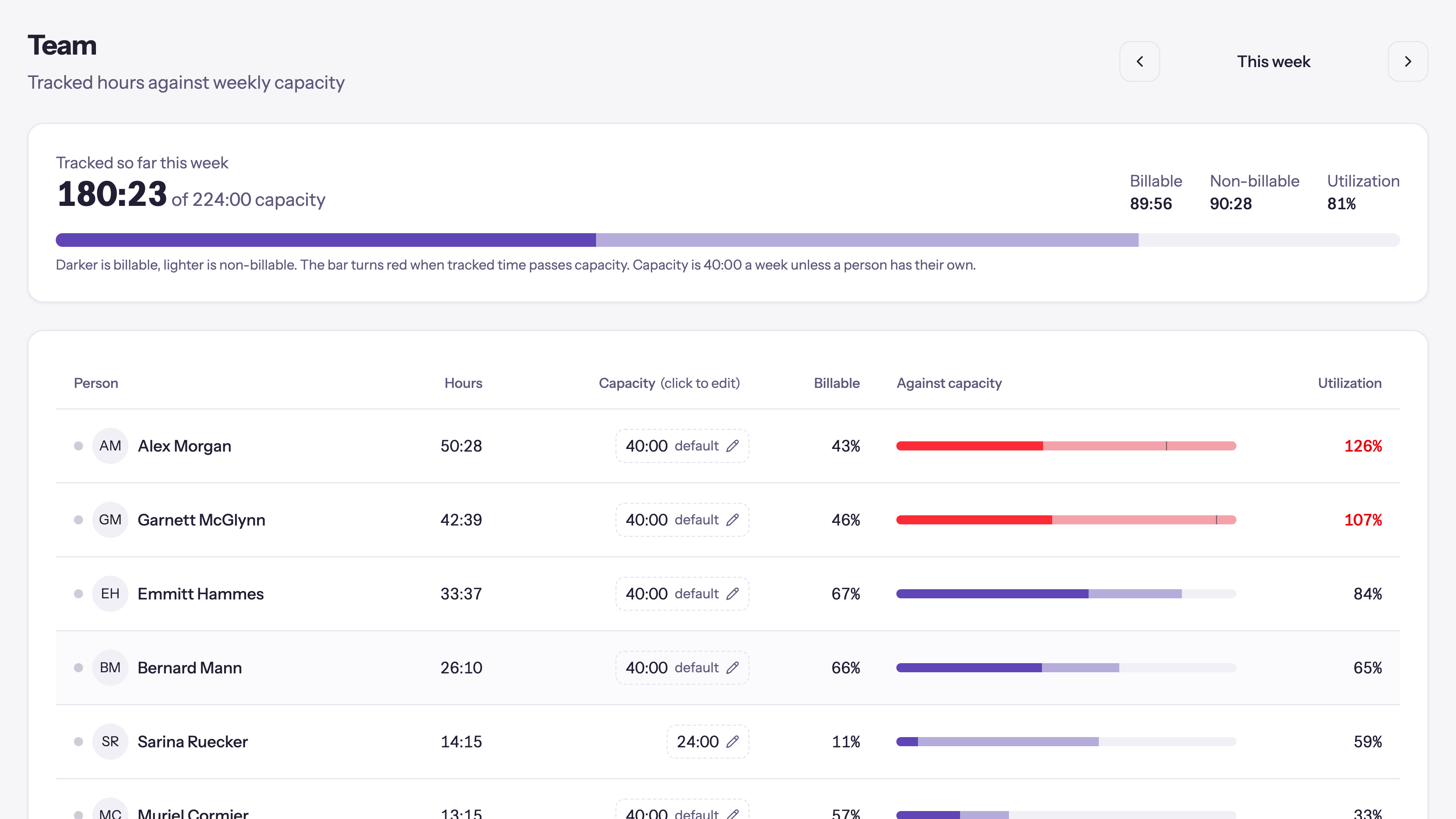
Knowing how many hours your team tracked last week is easy. Knowing whether that was too many, too few, or about right is the part that needs a number to measure against. That number is weekly capacity, and Quanta now tracks hours against it on a dedicated Team page.
The Team page
Open Team under Analytics. It shows the current week: every person, the hours they've tracked, their weekly capacity, and a bar that fills as the week fills up.
- The bar reads at a glance. Darker is billable, lighter is non-billable, and the whole bar turns red when tracked time passes capacity. A marker sits at the 100% line so you can see how close each person is without reading the numbers.
- Utilization is the last column: tracked hours as a share of capacity. One person at 120% and another at 40% in the same week is the thing you want to catch on Wednesday, not at the end of the month.
- The header sums the team. Total hours against total capacity, billable and non-billable, and the team's overall utilization.
- Step through weeks. Move back and forth a week at a time; each person links to their detailed report for the week you're looking at, so a surprising number is one click from the entries behind it.
A running timer counts too: the live elapsed time is added as you watch, from the start of the week you're viewing, so a timer left running since Monday doesn't inflate today.
Setting capacity
Every workspace has a default weekly capacity (40 hours to start), set in Settings under Administration. That default applies to everyone until a person gets their own number.
To give one person a different number, click their capacity right on the Team page. A small field takes the hours a week, and Use workspace default clears it so they follow the workspace again. The bar and the totals update as soon as you save.
Editing capacity from the Team page needs the Edit weekly capacity permission. Admins have it already; grant it to a role and a team lead can manage capacity without full user administration. You can still set the same number from a person's profile under Administration → Users.
It's a measure, never a limit
Capacity in Quanta is a yardstick, not a gate. Nobody is ever stopped from tracking time because they hit their number, and going over doesn't break anything. The point is visibility: who is overloaded, who has room, and how the week is shaping up while you can still do something about it. Part-timers get a smaller number, a contractor booked for two days a week gets sixteen hours, and the bars stay honest for everyone.
How the numbers are worked out
Every figure on the page comes from the same few rules, and they are worth knowing before you read anything into a percentage.
- Whose hours. Everyone active in the workspace.
- Which hours. Every entry that starts inside the week you are looking at, in your workspace's time zone, Monday through Sunday. A timer still running is added live as you watch, counted only from the start of the week on screen, so one left running since Friday does not drop its whole life into this week.
- Billable and non-billable. An entry counts as billable if it is marked billable, or if it sits on a fixed-fee project. Fixed-fee hours carry no hourly amount, but for capacity the question is whether the week went on client work, not what that work was priced at. The Billable column is that share of the person's own tracked hours, not of their capacity.
- Capacity. The person's own weekly number when they have one, otherwise the workspace default.
- Utilization. Tracked hours divided by capacity, rounded to a whole percent. Anyone on a capacity of zero shows a dash instead of a number, because dividing by nothing would read as infinitely busy rather than unmeasured.
- The bar is scaled to whichever is larger, the capacity or the hours tracked, so a week that runs over spills visibly past the capacity mark instead of stopping at the end of the track.
On the dashboard too
The workspace dashboard's user-activity view carries the same idea: utilization against capacity, prorated across the working days so far, so the headline picture is on the front page and the week-by-week detail is on the Team page.
In short
Give each person a weekly capacity, and Quanta turns a pile of tracked hours into something you can read: who's over, who's under, and where the week stands. It's the same visibility our budgets give a project, pointed at your people instead.
Questions, or a team view we don't cover yet? Email support@quanta.is.
— The Quanta team