Budgets in Quanta
Six ways to cap a project: fees or hours, for the whole project, for each task, or for each person. Set a floor as well as a ceiling, decide who sees the money, and switch types without losing what you configured.
"Are we over budget?" is a question with at least six different meanings, and which one you mean depends entirely on how you sold the work.
A fixed-fee build has one number for the whole project. A retainer-style month has a number of hours. An agency that quotes per deliverable needs a cap on each task, not on the total. A team lead who is worried about one contractor's hours needs a cap per person. Same question, different shapes.
Quanta's budgets used to make you translate your answer into ours. Now you pick the shape first, and everything else follows from it.
Pick the shape, not the plumbing
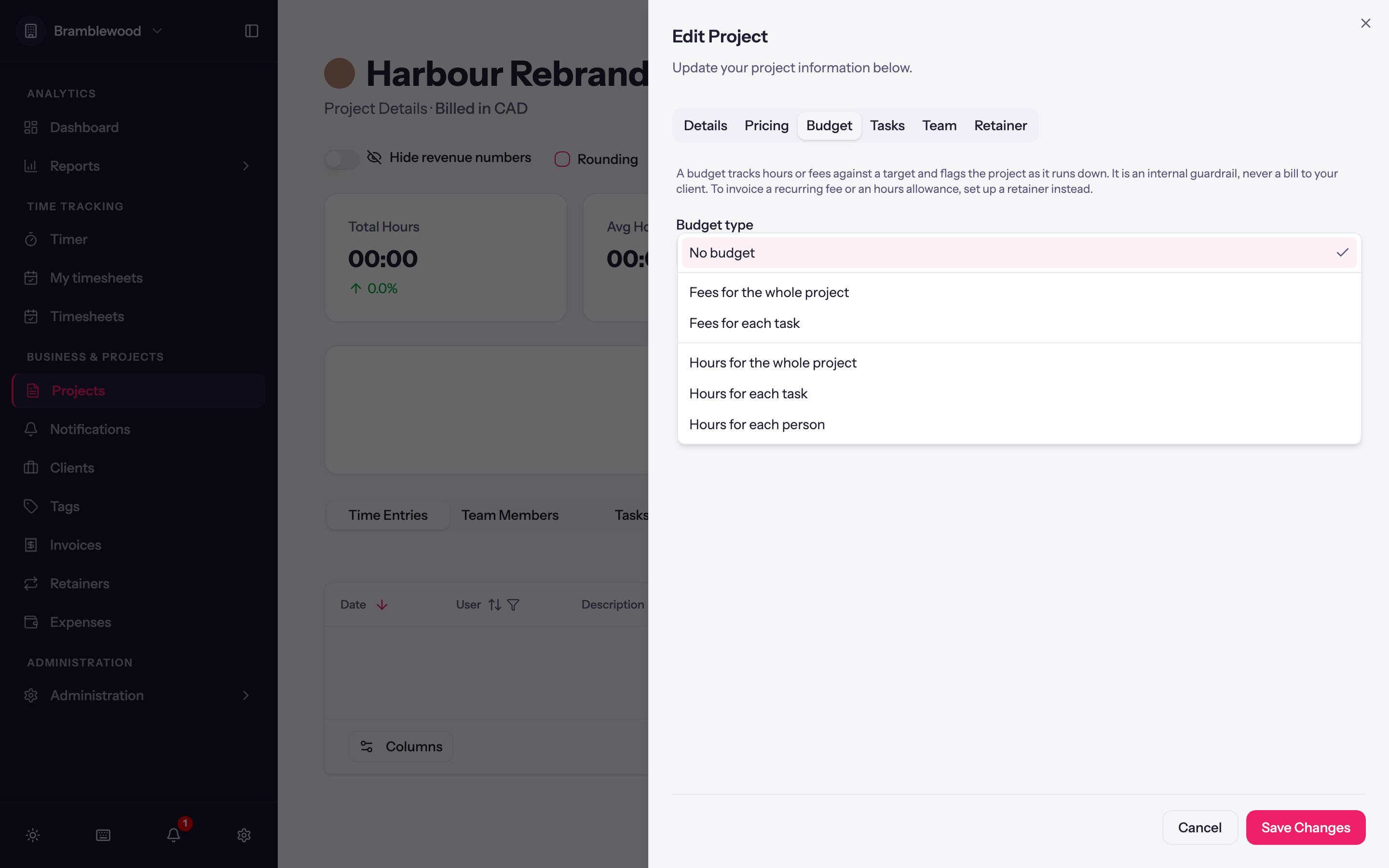
Budgets live on the Budget tab of a project. The first thing you choose is the budget type, and it is written the way you would say it out loud.
- Fees for the whole project. One pot of money for everything.
- Fees for each task. Every task carries its own amount. Good for deliverable-based quotes.
- Hours for the whole project. One pot of hours.
- Hours for each task. A cap per deliverable, counted in time rather than money.
- Hours for each person. A cap per team member on this project.
- No budget. The default, and a perfectly good answer.
Fee budgets and hour budgets are grouped separately in the list, because the choice between "money" and "time" is usually the one you have already made before you open the dropdown.
Two of these have prerequisites, and Quanta tells you rather than leaving the option mysteriously greyed out. Fee budgets need hourly billing turned on, since without a rate there is nothing to add up, and the hint points you at the Pricing tab. Per-task budgets need tasks turned on, and the hint points at the Tasks tab.
A floor as well as a ceiling
Every budget has an Amount, which is the ceiling. It also has a Low limit, which is optional and empty by default.
The low limit exists because "over budget" is not the only thing worth knowing. On a retainer-shaped month, badly under the number is also a problem: it usually means work that was promised did not happen, and you would rather find that out in week three than at invoicing. On a fixed-fee project it can mean time is being logged somewhere else by mistake.
A budget below its low limit is labelled Under Low Limit on the project and in the budget report, where you can also filter for exactly those. It is a status rather than an email, so it sits alongside the over-budget states instead of adding another thing that pings you.
Resets decides whether the budget is a one-off or repeats: Never, Weekly, Biweekly, or Monthly. A monthly reset is what makes an hours budget behave like an allowance rather than a lifetime total.
Per task and per person
When you choose one of the per-task or per-person types, the amounts are entered on the tab where those things already live, so you are not maintaining a second list of tasks inside the budget screen.
Task budgets come with one more control worth knowing about: Counts toward budget, a per-task toggle. Internal review, non-billable admin, and the standing "meetings" task usually should not eat a client's deliverable budget. Switch it off and that task's time still gets logged and still shows up in reports, it just stops drawing down the budget.
The Resets setting for these types applies to every task or person budget when you save, so you set the cadence once rather than on each row.
Deciding who sees the money
Budgets are also a visibility question, and the answer is rarely "everyone sees everything".
Show this budget to members does what it says, with one deliberate asymmetry: on a fee budget, members see progress only and never the dollar figures. On an hours budget they see the hours, because hours are usually the thing you want them watching.
Show monetary amounts to leads is the separate decision for people who manage the work but do not necessarily see the commercials. Off, a lead sees a progress bar. On, they see the numbers.
Changing your mind is not destructive
The thing that made budget types feel risky before was the suspicion that switching would throw away what you had configured. It does not.
When you change type, the budgets for the old type are kept and paused. They stop counting in reports and alerts, and if you ever switch back, the values you set are still there. Logged time is never touched by any of this. And nothing at all happens until you save the project, so you can look at the confirmation, decide against it, and back out.
That also means the change is safe to explore. Switch a project from total hours to per-task hours, see whether the shape suits how you actually work, and switch back if it doesn't.
Set it up while you create the project
Budgets used to be a second visit: create the project, save it, reopen it, then configure the budget, the tasks, and the team. That was tedious and it made the first project someone creates in Quanta feel more bureaucratic than it needed to.
Now the project sheet lets you set the budget type, the task budgets, the team, and their rates while you are creating the project, and it all saves together. If any part of it fails, none of it is written, so you never end up with a half-configured project.
What about retainers?
Budgets cap work from your side. Retainers describe the deal from the client's side: a fee every month or quarter for an agreed number of hours, with overage rules and rollover, invoiced on schedule. If what you are actually modelling is "the client pays $4,200 a month for up to 40 hours", that is a retainer rather than a budget, and it is worth reading Retainers in Quanta instead.
The two work together. A retainer describes the commercial agreement, and budgets cap the work inside it.
In short
Choose a budget the way you sold the work: fees or hours, for the project, for each task, or for each person. Set a ceiling and, if it helps, a floor. Decide who sees money and who sees progress. Exclude the tasks that should not draw the budget down. Change your mind later without losing anything.
Budgets are on the Budget tab of any project, for anyone who can edit budgets. If the shape you need isn't in the list, tell us at support@quanta.is.
— The Quanta team