Jira (beta)
Install the Quanta app on your Jira Cloud site, connect your account from any issue, and log time without leaving the issue.
The Jira app adds a Quanta (beta) panel to every issue on a Jira Cloud site. From it you log time, or run a timer, and the entry lands in Quanta linked to the issue. It is in beta: check the first few entries you log from Jira, and use Report a problem on the Jira page if anything looks off.
The app uses API access, which is included on every paid plan.
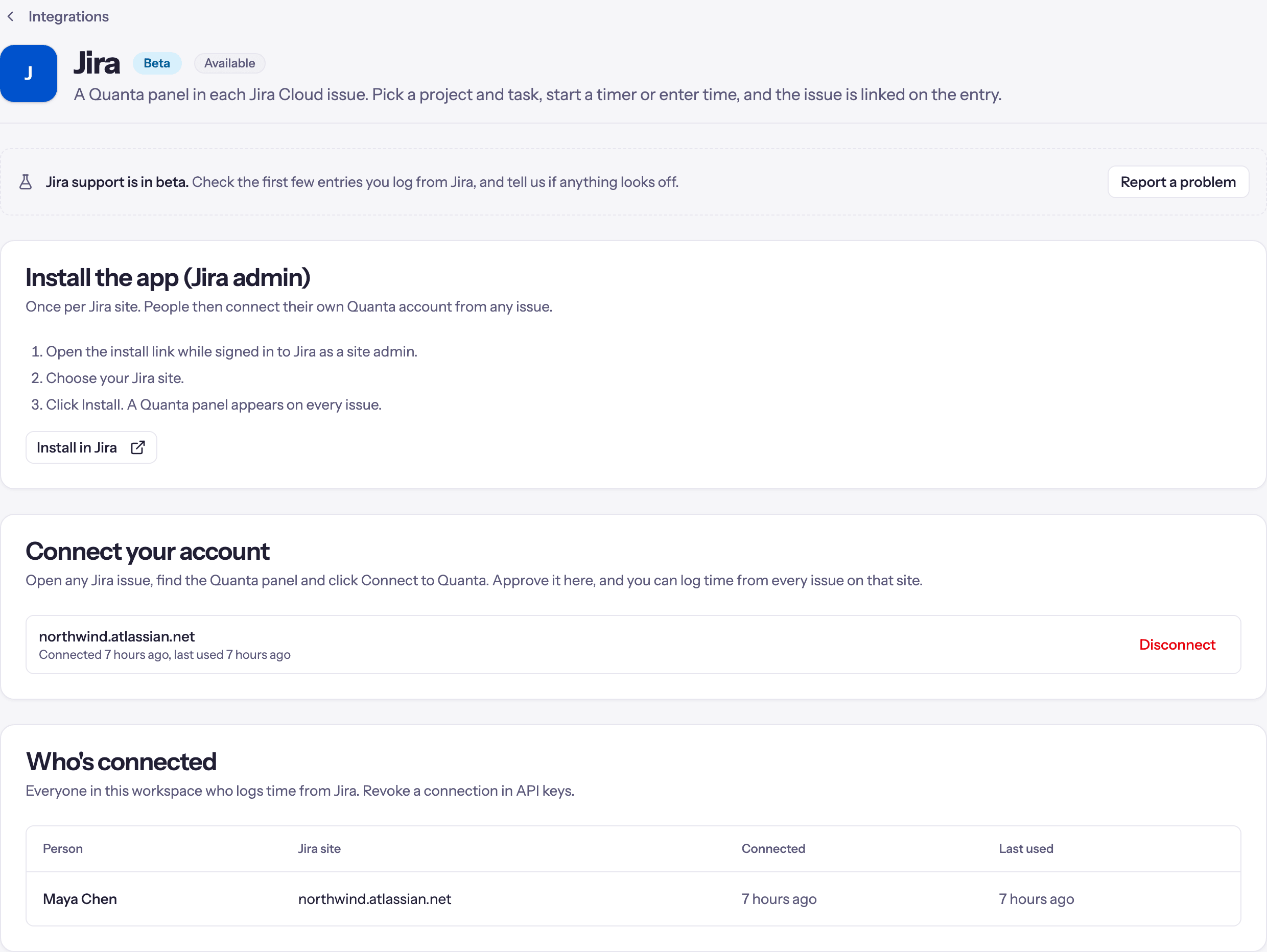
Install the app
A Jira site admin does this once per Jira site.
In Quanta, open Integrations → Jira and click Install in Jira. Open it while signed in to Jira as a site admin.
Choose your Jira site.
Click Install. A Quanta (beta) panel appears on every issue.
Connect your account
Everyone connects their own Quanta account, so each entry is logged as the person who did the work, with their own permissions.
Open any Jira issue, expand Quanta (beta) and click Connect to Quanta. Jira asks before it opens an outside page; continue.
Quanta opens in a new tab. Sign in if you need to. The page asks whether to allow your Jira site to log time as you in your current workspace. If you belong to more than one workspace, choose another under Use a different workspace.
Click Allow, then go back to Jira. The panel switches to the log time form within a few seconds.
The link from Jira expires after a while. If Quanta says it has expired, click Connect again in the panel. You connect once per Jira site.
Log time from an issue
- Project and, when the project has tasks, Task. Your choice is remembered for each Jira project.
- Notes start as the issue key and title, for example KAN-1: Add Apple Pay to checkout. Edit them freely.
- Date and Duration. Durations can be written as
0:20,1.5or1h 30m.
Click Save entry. The panel shows how much you have logged to that issue.
To time the work instead, click Start timer, then Stop when you finish. It is your normal Quanta timer: if one is already running elsewhere, the panel says so, and starting one from the issue stops it.
Open in Quanta takes you to your timer.
The issue on the entry
Entries logged from Jira show the issue key as a chip on the timer list, the weekly timesheet breakdown, a project's Time Entries tab and the detailed report. Click it to open the issue in Jira.
Disconnect
Click Disconnect in the panel, or open Integrations → Jira and click Disconnect next to the site. The panel stops logging time as you straight away. Time you already logged stays in Quanta.
Admins also see Who's connected: each person in the workspace who logs time from Jira, the Jira site, and when the connection was made and last used. Each connection is an API key, so an admin can revoke one under Administration → API Keys.
Limits of the beta
- Time stays in Quanta. It is not copied into Jira's work log.
- Jira Cloud only.