QuickBooks Online
Connect your QuickBooks Online company so every invoice you send, and every payment you record, lands in your books.
Needs the QuickBooks integration permission (Admins have it) and a QuickBooks Online company you can sign in to.
Connect
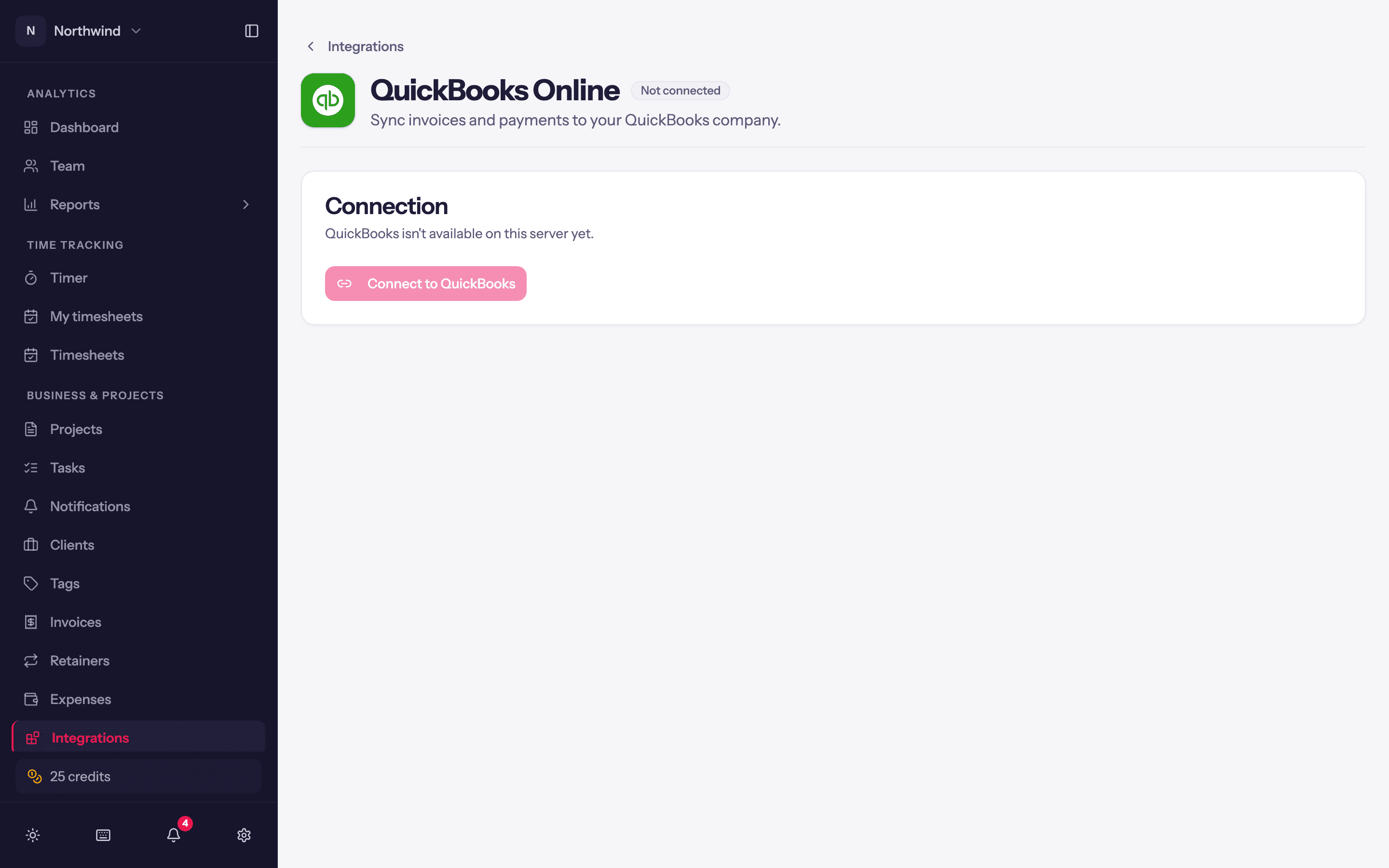
Open Integrations → QuickBooks Online and click Connect to QuickBooks. Sign in to Intuit and choose the company. You are returned to Quanta with Connected to QuickBooks.
Work through Finish setting up QuickBooks, the checklist at the top. It names what is still to choose, chiefly the Default product or service under Mappings. Finish setup saves everything and switches syncing on (Setup finished. Invoices will now sync to QuickBooks.). Nothing syncs until you finish.
Mappings
Which QuickBooks tax rate and products/services invoice lines use.
- Default tax code and Non-taxable line code (or Use default).
- Tax code per tax profile: map each Quanta tax profile to the QuickBooks code that charges the same tax.
- Product / service per item type: leave an item type on Auto-match by name to link it to a QuickBooks product/service with the same name automatically, or choose a specific product to override. A service that sits under a category works. The Default product or service covers lines whose item type has no mapping and no same-name product.
Save mappings stores them.
Sync settings
What Quanta pushes, and how:
- Invoices → Auto-sync invoices on send. When you send or mark an invoice as sent, push it automatically. Off, use the Sync to QuickBooks action on each invoice.
- Let QuickBooks assign invoice numbers. For companies with custom transaction numbers turned off in QuickBooks. With it on, Quanta keeps sending its own number so the invoice is never left without one.
- Payments → Sync payments to QuickBooks. Each payment recorded in Quanta is applied to the synced invoice in QuickBooks. Turn it off if you record payments in QuickBooks yourself.
- Customers → Auto-create customers. A Quanta client with no QuickBooks customer of the same name is created on first sync. Project sub-customers files single-project invoices under a QuickBooks sub-customer.
Save settings stores them.
Day to day
- Each invoice shows Not synced, Synced, Edited (changed in Quanta since the last push) or Error, and has Sync to QuickBooks in its menu for a manual push. A push also sends any payment on that invoice that never reached the ledger.
- The invoice Memo goes to QuickBooks as the private note.
- Clients match to customers by name; override the match on the client sheet under the accounting link. See Managing clients.
Disconnect
Disconnect on the Connection card stops all syncing. Reconnecting later asks you to set the mappings again.