Roles and permissions
The built-in Admin and User roles, how to create a custom role, and the permission groups that matter most.
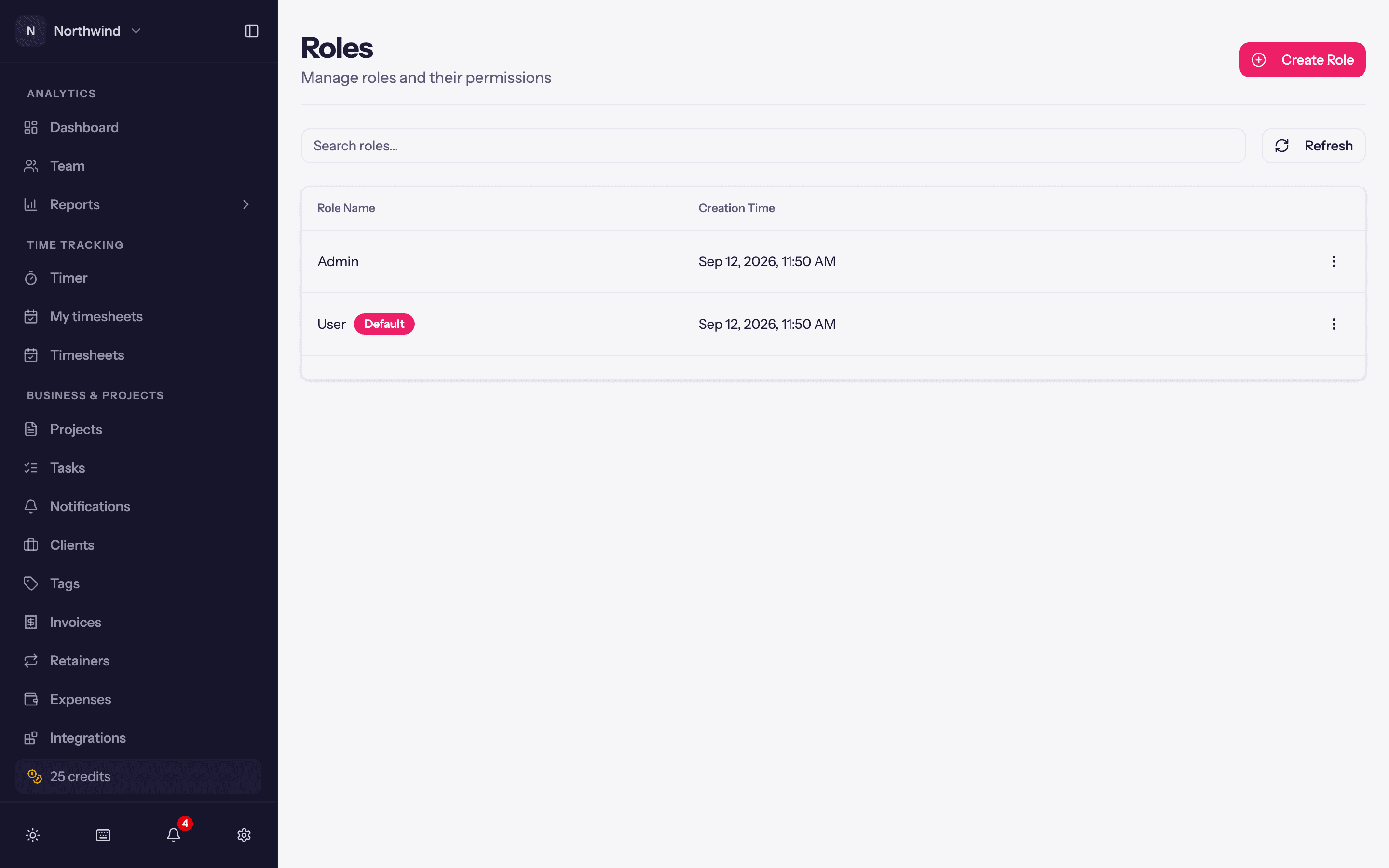
A role is a named set of permissions. Every person has one or more roles, and what they can see and do is the union of them. Administration → Roles lists the roles; Administration → Users assigns them.
The built-in roles
| Role | Description | Typical for |
|---|---|---|
| Admin | Runs the workspace: people, billing, settings and every project. | Owners, office managers |
| User | Tracks time and sees their own work and the projects they are on. | Everyone else |
User is the Default Role: new people get it automatically unless the invite says otherwise.
On top of workspace roles, a person can be a Member, Lead or Manager on individual projects, and a Client manager or Client lead on a client. Those are set on the project or client, not here; see Project team.
Creating a custom role
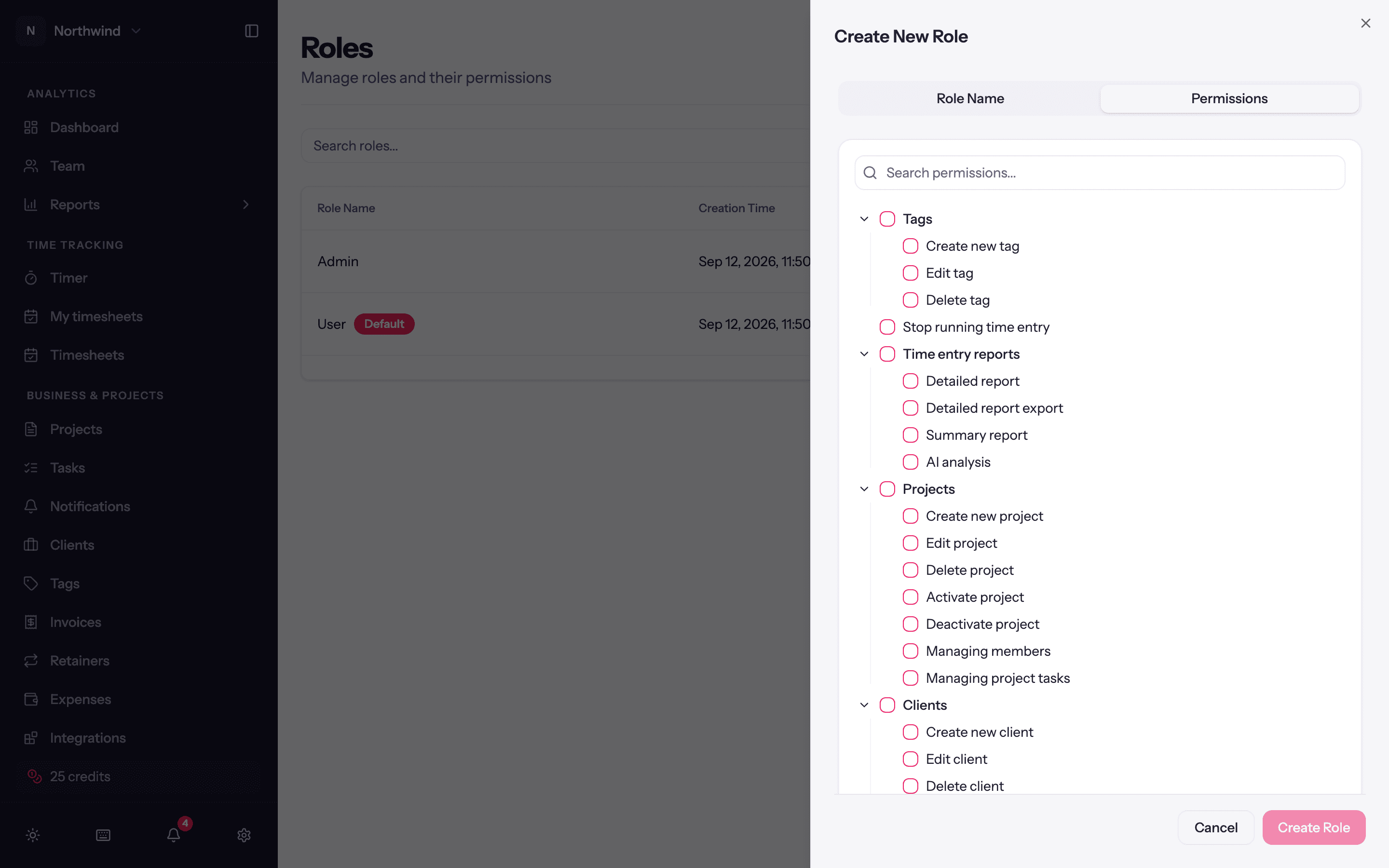
Administration → Roles → Create Role. Give it a Role Name.
Tick Default Role if new users should get it automatically.
On the Permissions tab, tick permissions in the tree. Ticking a parent grants everything under it; Search permissions... finds one by name.
Save. People with the role may need to refresh the page for the change to take effect.
Permission groups worth knowing
The tree mirrors the app. The groups that come up most when building a role:
- Personal timesheet: the Timer page. Everyone who tracks time needs this.
- Time entry management: create, edit, delete, lock, unlock and stop other people's entries, and View time entry rates.
- Time entry reports: the Detailed and Summary reports across the workspace, export, and AI analysis (AI Insights).
- Projects, Clients, Tasks, Tags: manage those pages (create, edit, deactivate, delete).
- Expenses: log expenses; separate permissions to see everyone's, edit and delete.
- Invoices: see and create invoices, edit, delete, record payments, manage item types.
- Retainers, Integrations (QuickBooks, Xero), Team, Dashboard, Credits.
- Administration: Users, Roles, Audit Logs, Subscription, Reminders, Settings (Workspace Settings and Import), API keys, and Timesheets (approve, send back, and manage timesheet groups).
A useful pattern is a Manager role: User plus Time entry reports, Projects and Clients, without Administration or Invoices.
Per-person exceptions
Manage Permissions on a user grants or denies single permissions for that person on top of their roles. Reset Special Permissions clears them. Keep these rare; a role is easier to audit.
Who can approve timesheets
Approvers are named on each timesheet group and do not need any permission for the Timesheets page to appear; see Timesheet groups.