Managing users
The Users page, editing a person's roles, capacity and AI allowance, deactivating and deleting.
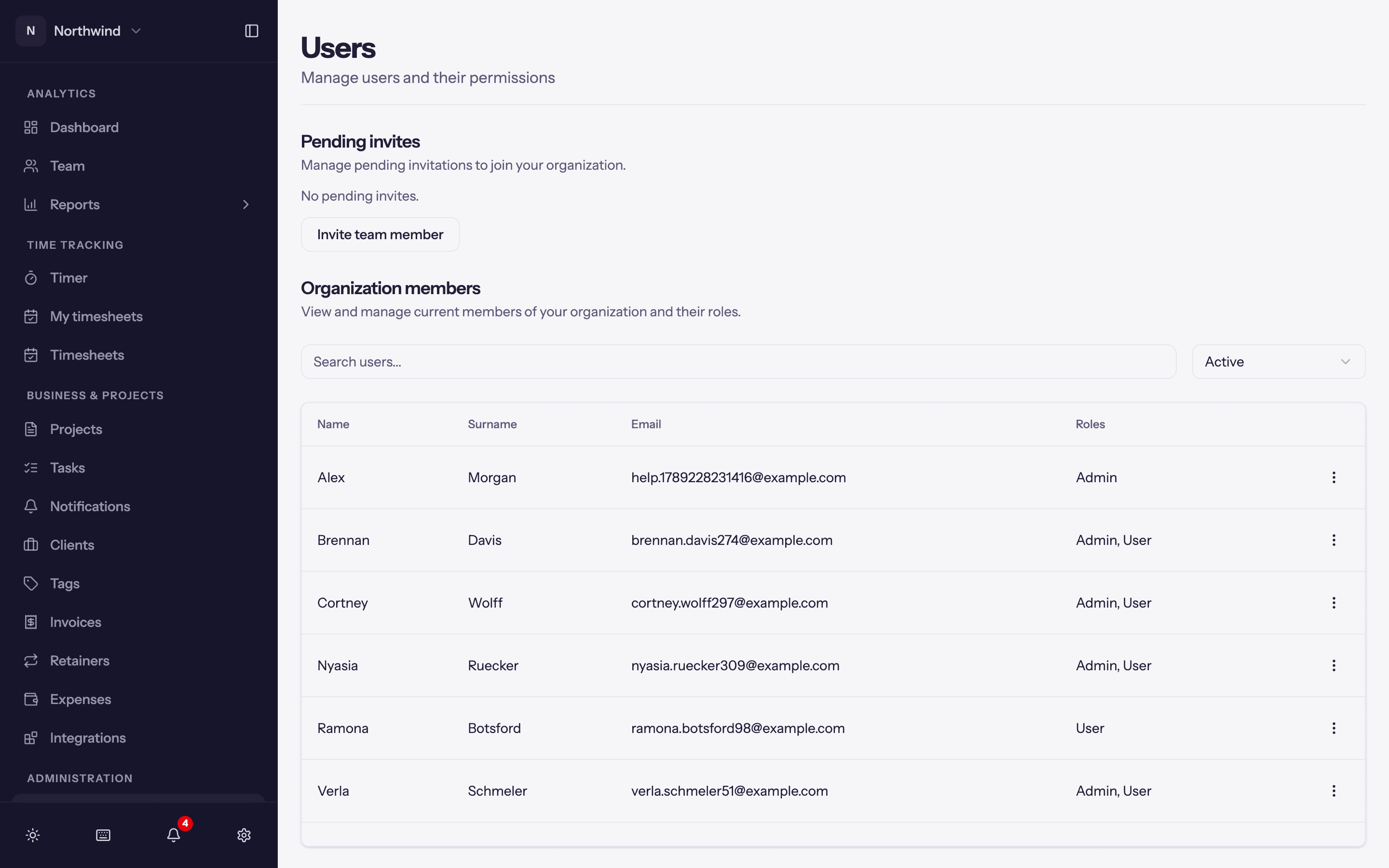
Administration → Users lists everyone in the workspace under Organization members, with Pending invites above. Filter by Status: Active, Deactivated or Invited. Search by name or email.
Editing a person
Edit User in the row menu opens:
- Active: off is the same as deactivating.
- Use AI features, Monthly AI Allowance (credits per month; 0 uses the workspace default) and Bonus Credits. See AI credits.
- Rates: the person's own billable and cost rate, with history.
- Weekly capacity (hours): what this person is expected to work each week, shown against their tracked time on the Team page. Leave empty for the workspace default.
- Roles: Admin (runs the workspace: people, billing, settings and every project), User (tracks time and sees their own work and the projects they are on), or any custom role.
First name and Last name are editable here, so an admin can correct a name imported wrong or left as an email address. A person has one name across every workspace they belong to, so a change here shows everywhere they appear.
People change their own name, email, password and formats under their own settings too; see User settings.
Other row actions
- Manage Roles: the same role list without the rest of the form.
- Manage Permissions: grant or deny individual permissions to this one person on top of their roles. Reset Special Permissions returns them to whatever their roles say. Use sparingly; a custom role is easier to reason about.
- View Timesheet: opens their week in the timer views.
- Deactivate / Activate: a deactivated person cannot sign in and drops out of pickers, but everything they tracked stays in reports and can still be invoiced. Deactivate people who leave.
- Delete: removes the person from the workspace permanently. Prefer Deactivate; delete only accounts created by mistake.
- Resend invitation for someone still in the Invited state.
Subscription lapses
When a subscription ends, the workspace goes read-only for everyone, Admins stay active, and the Users page keeps working so you can tidy up before resubscribing. See Subscription and billing.