Inviting clients
Invite a client contact to the portal, resend their sign-in link, revoke access, and preview the portal as the client.
Portal access belongs to a client's contacts. Open the client and go to its Contacts tab.
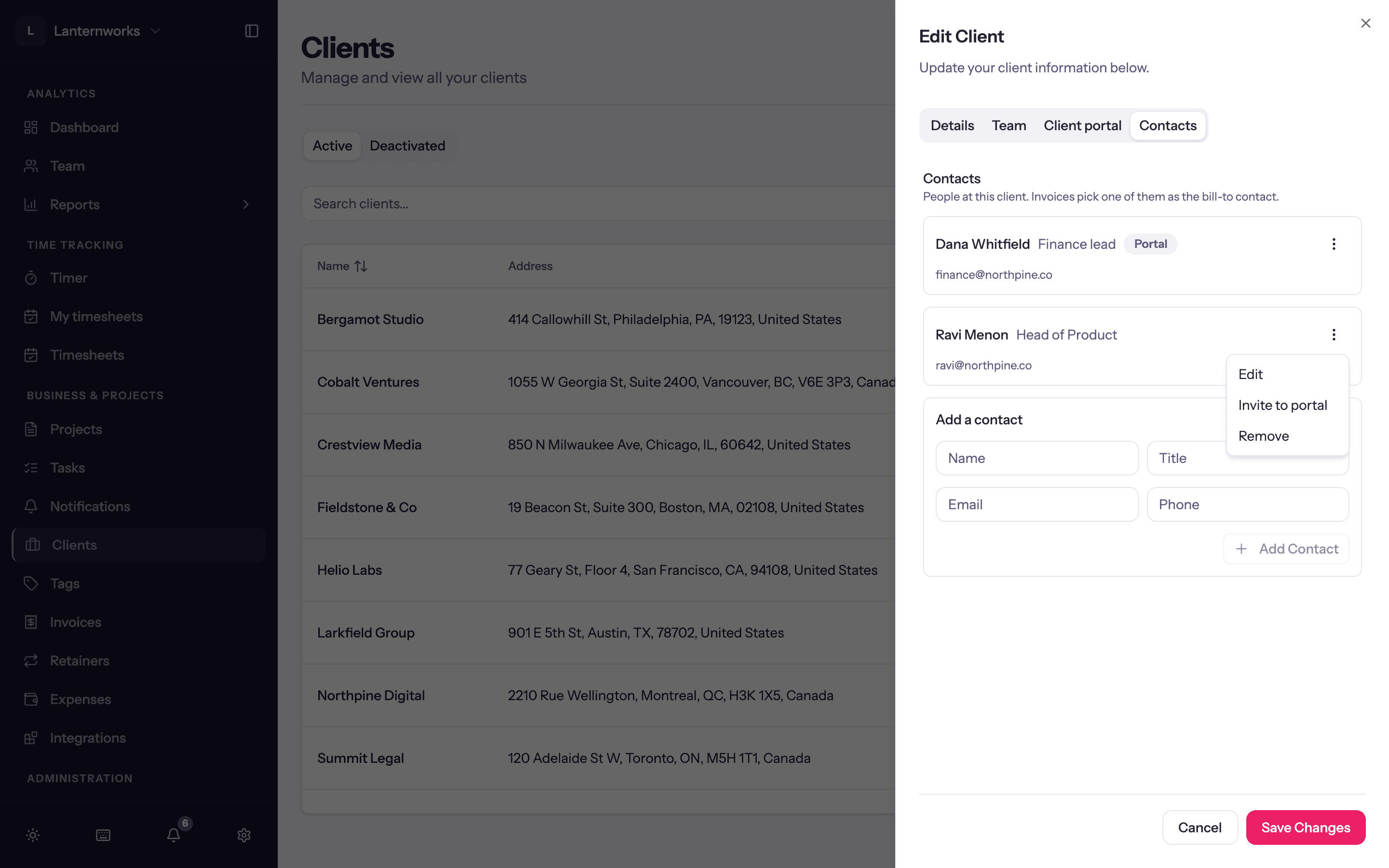
Invite a contact
Open the contact's ⋯ menu and choose Invite to portal. The contact needs an email address; without one the item reads Invite to portal (needs an email). They are emailed a sign-in link, and the contact shows Invited to portal until they sign in, then Portal.
To sign in later, a client enters their email on the portal's sign-in page and is sent a fresh link. Links expire after 15 minutes and work once. There is no password.
Resend or revoke
On an invited or active contact, the ⋯ menu has Resend sign-in link and Revoke portal access. Revoking signs them out immediately and stops their links working; you can invite them again later. The contact then shows Portal revoked.
To shut out every contact at a client at once, turn off Client portal access on the client's Client portal tab.
Preview the portal
Preview portal, on the client's Client portal tab or a project's Client Portal tab, opens a new tab signed in as that client, so you can check every project and invoice before you invite anyone. It works before the portal is switched on for the workspace. Payments are turned off in a preview. View client portal in the Clients and Projects list menus does the same.
Inviting, resending, revoking and previewing need the Manage client portal permission.