Retainer auto-pay
Clients save a card once from a retainer invoice, and every retainer invoice after it is charged when it goes out.
With auto-pay on a retainer, your client saves a card when they pay a retainer invoice, and each invoice after it is charged to that card when it is sent. The card is entered on Stripe's checkout page and kept by Stripe on your connected account; Quanta only stores its brand, last four digits and expiry.
Before you start
- The client portal is switched on and Stripe is connected.
- Online payments are allowed for the client (Allow this client to pay invoices online).
- The retainer's Auto-pay is set on its form. See Retainers for Off, Charge when sent and Fully automatic.
Your client saves the card from the invoice
Send the retainer's invoice as usual, or use Email invoice on the retainer's Auto-pay panel. The email tells your client they can save a card when they pay. On the invoice page, instead of a single Pay button, they are asked How would you like to pay?
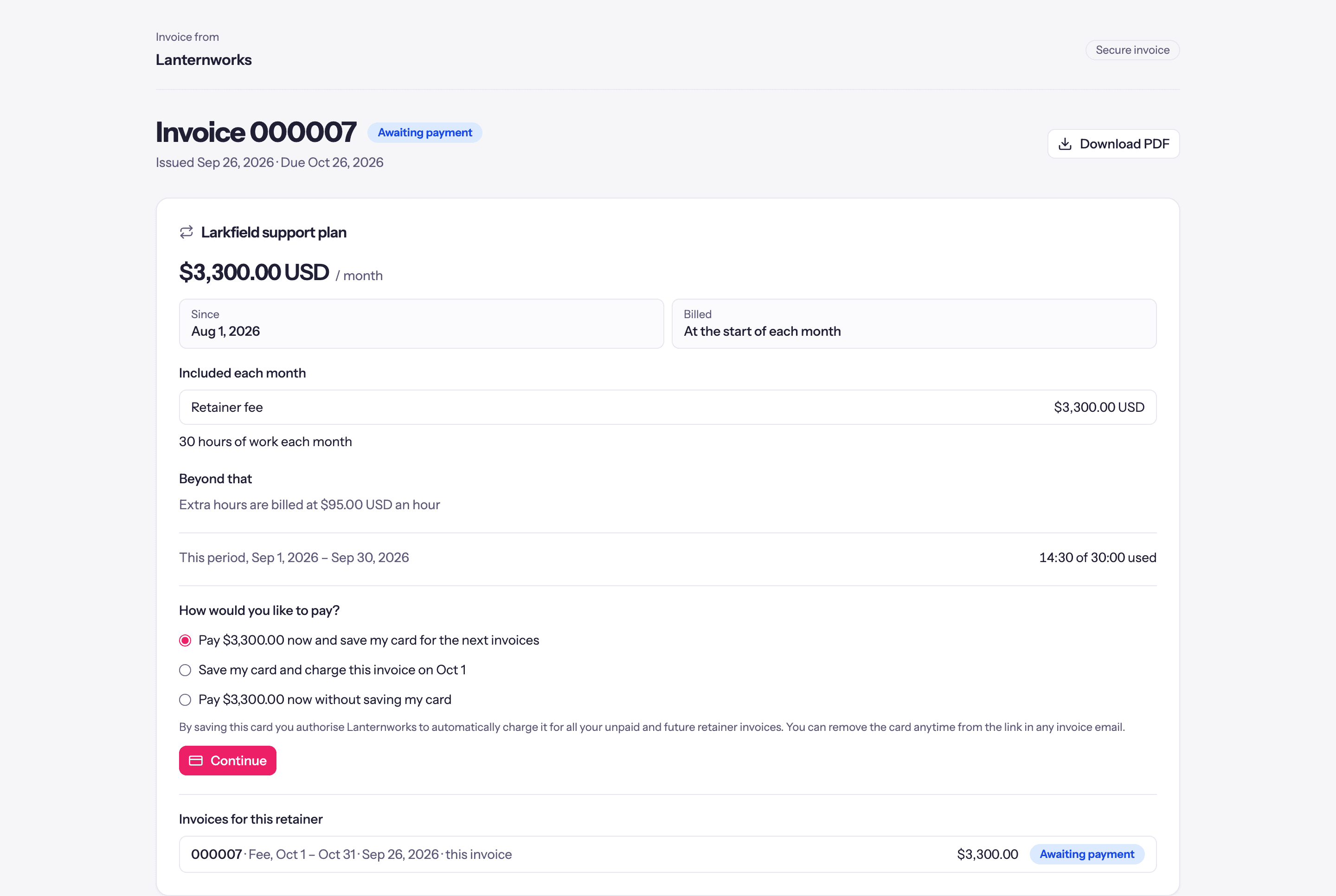
- Pay … now and save my card for the next invoices
- Save my card and charge this invoice on …, shown when the invoice is for a period that hasn't started. Nothing is charged until that day.
- Pay … now without saving my card
Saving the card authorises you to charge it for their unpaid and future retainer invoices. Once a card is saved, the invoice page says when it will be charged, for example This invoice will be paid automatically with Visa ending 4242 on Oct 1. You can also pay it now.
After that
- Charge when sent: you review each draft, and sending it charges the card.
- Fully automatic: each period's invoice is sent and charged with no review.
A saved card is never charged before the period an invoice covers has started. Each automatic payment is recorded on the invoice like any card payment, and your workspace is emailed.
Declined cards
If a charge is declined, your client is emailed a Pay invoice button and a link to update their card, and your workspace is emailed too. Quanta tries again three days after the first attempt and once more at seven days. The invoice page shows the next attempt and an Update card button. After the last attempt the invoice falls back to your normal payment reminders.
The charges and their status (Paid, Scheduled, Processing, Declined, Needs client, Skipped) are listed on the retainer's Auto-pay panel, with the reason for any that failed.
Changing or removing the card
Once a card is saved, each retainer invoice email carries a Manage auto-pay link (Update card in a payment reminder). It opens a page where your client can Replace card or Remove card and see recent charges, without signing in. A client signed in to the portal has the same controls on its Automatic payment card. You can also Remove card from the retainer's Auto-pay panel. Either way, invoices stop being charged automatically until your client saves a card again from their next unpaid invoice.