Sending invoices
Email an invoice with the PDF attached, preview exactly what the client sees, or mark it sent if you delivered it another way.
Open an invoice and click Send Invoice.
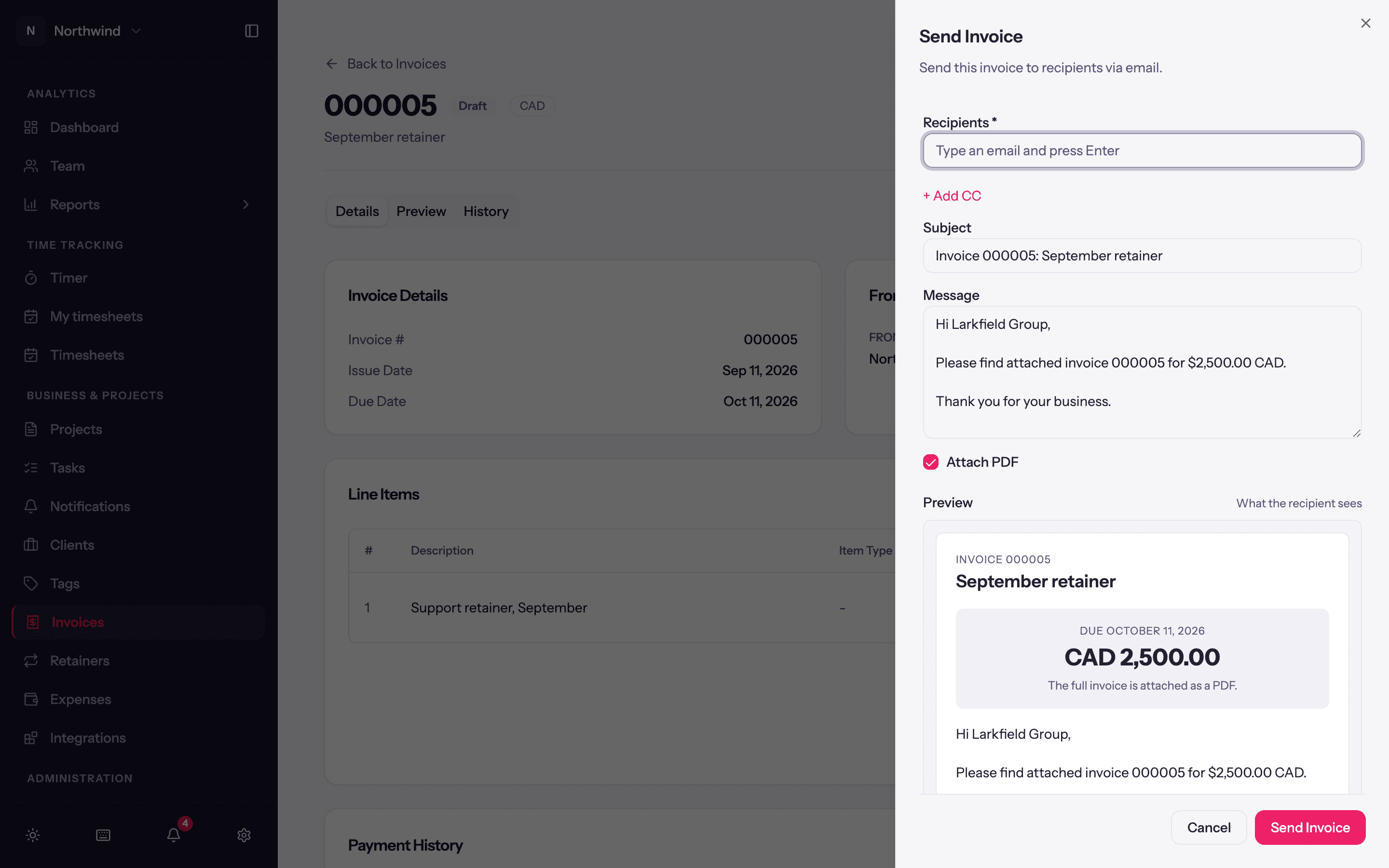
The send sheet
| Field | Notes |
|---|---|
| Recipients | Pre-filled with the bill-to contact or the client's email. Type an address and press Enter to add more, or Add contact to pick from the client's contacts. + Add CC adds copy recipients. |
| Subject | Defaults to Invoice INV-0042 or, if the invoice has a subject line, Invoice INV-0042: September retainer. |
| Message | Pre-filled with a short note (Hi Larkfield Group, Please find attached invoice 000005 for $2,500.00 CAD. Thank you for your business.) that you can edit or replace. |
| Attach PDF | On by default. |
| Attach detailed time entries | Shown when the invoice has time entries behind it. Adds a spreadsheet of them. Pre-ticked if you chose Email the detailed time entries when importing. |
The Preview at the bottom of the sheet (What the recipient sees) is a block-by-block preview of the email: your logo and sender name, the message, the invoice summary with bill-to, terms and balance due, the note to customer, payment instructions and the footer. Anything marked not in the email is on the PDF only.
Click Send Invoice. The status changes from Draft to Sent and the due-date clock starts.
Who it comes from
Emails go out from Quanta's sending address with the Sender name, Reply-to email and Email footer set under Workspace Settings → Invoicing → Client emails. Replies land in the reply-to inbox. See Invoice settings.
Mark as Sent
If you delivered the invoice some other way (printed, or through your accounting system), choose Mark as Sent from the invoice's ⋯ menu. It moves the invoice out of Draft so payments, reminders and the accounting sync behave as if it had been emailed.
Send history
The History tab on the invoice records every send: who sent it, when, to whom, with what subject and which attachments. Automatic payment reminders and resends show up here too, so there is never a question about whether a client was told.
Resending
Send Invoice again re-opens the same sheet. Sending to a different address, or after an edit, is a normal send and is logged.
Download PDF
Download PDF on the invoice page gives you the same file that gets attached, for printing or uploading elsewhere. Export time entries downloads the spreadsheet of entries on its own.
What the PDF looks like:
- Amounts carry their currency symbol, and the currency is named once on the amount due ($16,644.90 CAD). Whole quantities print as 3 rather than 3.00.
- On a long invoice the column headings repeat at the top of every page, and the totals, the note to the customer and the payment instructions are never split across a page break.
- Payment instructions sit at the foot, after the totals and the note. The bill-to contact's name appears under the client only if Show the contact name on invoices is on.