Invoicing
Invoice statuses
What Draft, Sent, Partially Paid, Paid, Overdue and Void mean, and which actions an invoice offers.
Applies to:
Admins
An invoice's status is worked out from what has happened to it; you never set it directly.
| Status | Meaning |
|---|---|
| Draft | Created, not yet sent. Editable. Its time entries and expenses are already marked invoiced so they cannot land on a second invoice. |
| Sent | Emailed from Quanta, or marked as sent. The due date is live. |
| Partially Paid | At least one payment recorded, balance still due. |
| Paid | Balance is zero. Reminders stop. |
| Overdue | No payment recorded and the due date has passed. An invoice is overdue from the day after its due day, so one due today is not overdue today. An invoice with a partial payment stays Partially Paid. Push the due date out and it goes back to Sent. |
| Void | Cancelled, kept for the record. Its time and expenses become uninvoiced again. |
Actions on an invoice
At the top of the invoice page:
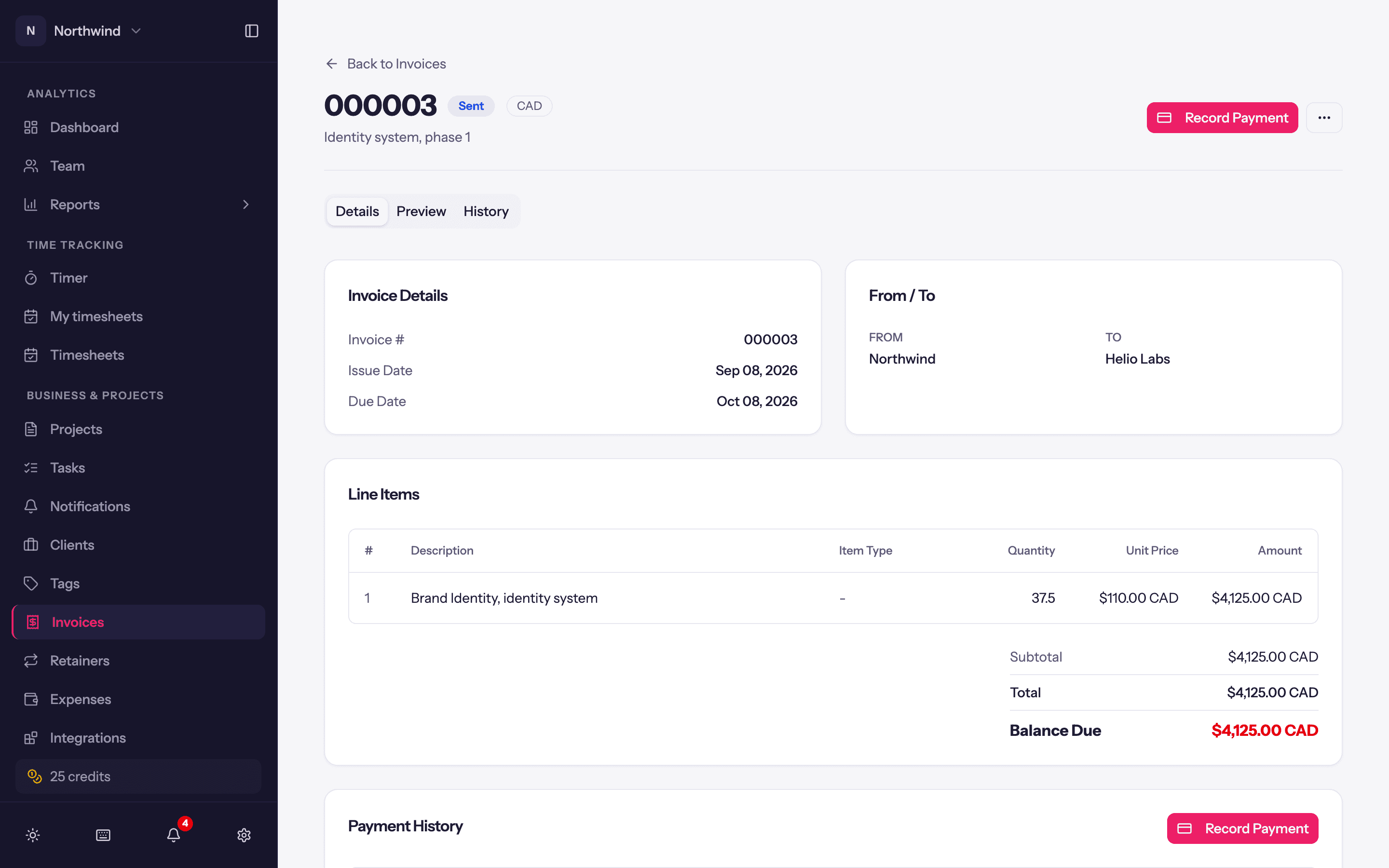
- Send Invoice, Record Payment, Download PDF: see Sending invoices and Recording payments.
- Edit: reopens the sheet. Editing an invoice that has already synced to QuickBooks or Xero marks it Edited until the next sync.
- Reminders paused: a switch to silence automatic reminders for this one invoice. See Payment reminders.
In the ⋯ menu:
- Mark as Sent, Export time entries, Apply credit.
- Duplicate: a new draft with the same client, lines, notes and settings and the next number.
- Void invoice: asks for an optional Reason, keeps the invoice exactly as it went out, and returns its time and expenses to uninvoiced so a corrected invoice can pick them up. An invoice with payments recorded cannot be voided; delete the payments first. Invoices generated by a retainer are managed from the retainer instead.
- Delete: removes the invoice entirely (also releasing its time and expenses). Prefer Void for anything a client has seen.
Tabs
- Details: the invoice as data, with line items, totals, payments applied, balance due, notes, payment instructions and payment history.
- Preview: the PDF as the client receives it (Click to load preview).
- History: every send, resend and reminder.
Accounting status
With QuickBooks or Xero connected, a badge shows Not synced, Synced, Edited or Error, and the menu offers Sync to QuickBooks / Sync to Xero for a manual push. See Integrations.