Recording payments
Record a payment on one invoice, apply one payment across several, and use credit on account.
One invoice
Open the invoice and click Record Payment.
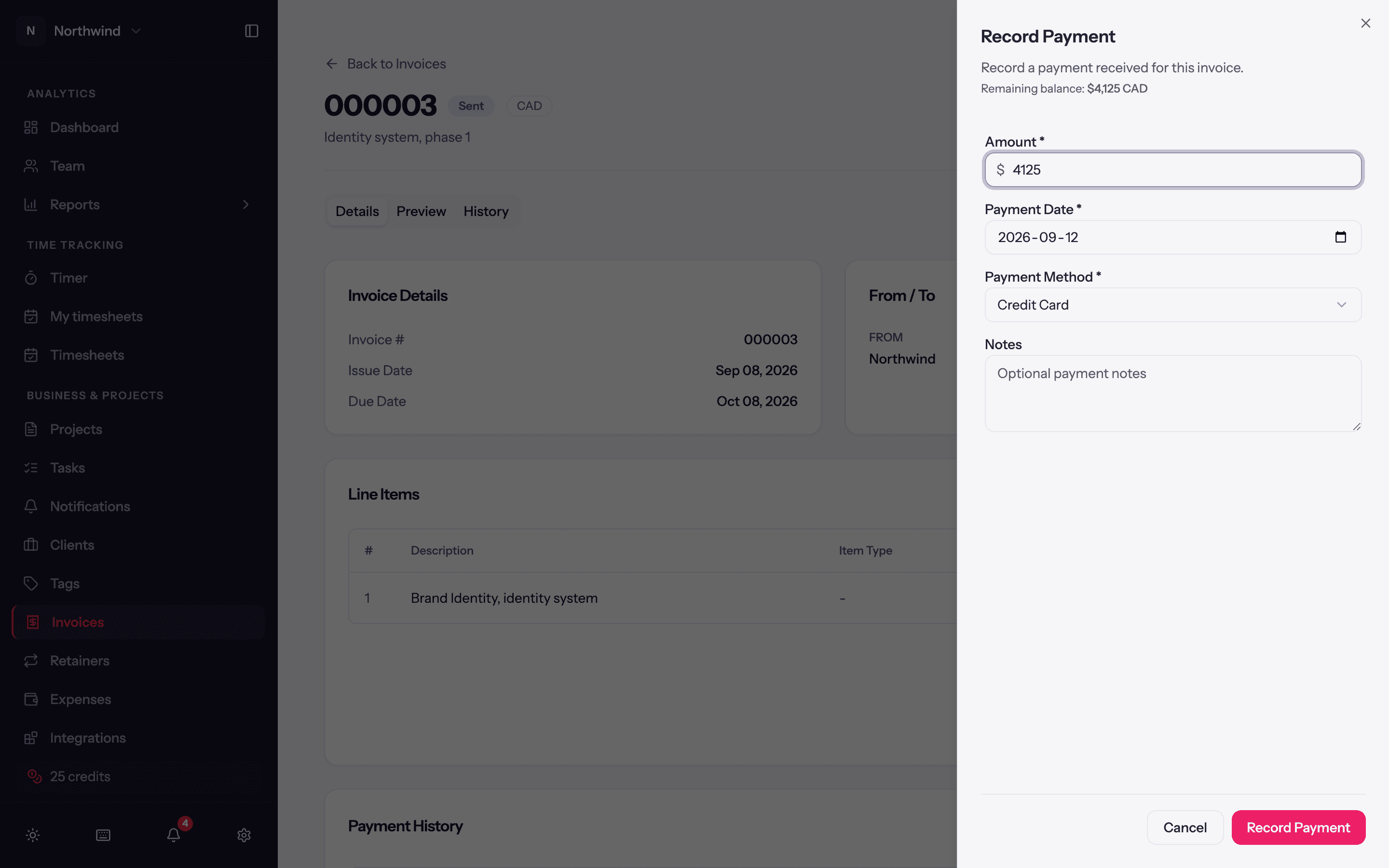
- Amount: defaults to the remaining balance, shown above the field.
- Payment Date.
- Payment Method: Credit Card, Bank Transfer, Check, Cash or Other.
- Optional notes (a reference number, say).
The payment appears under Payment History on the invoice with its date, method and amount, and the status becomes Partially Paid or Paid. A payment can be deleted from that list if it was recorded by mistake.
Several invoices at once
A client who pays one amount against three invoices is handled from the Invoices page: Receive Payment.
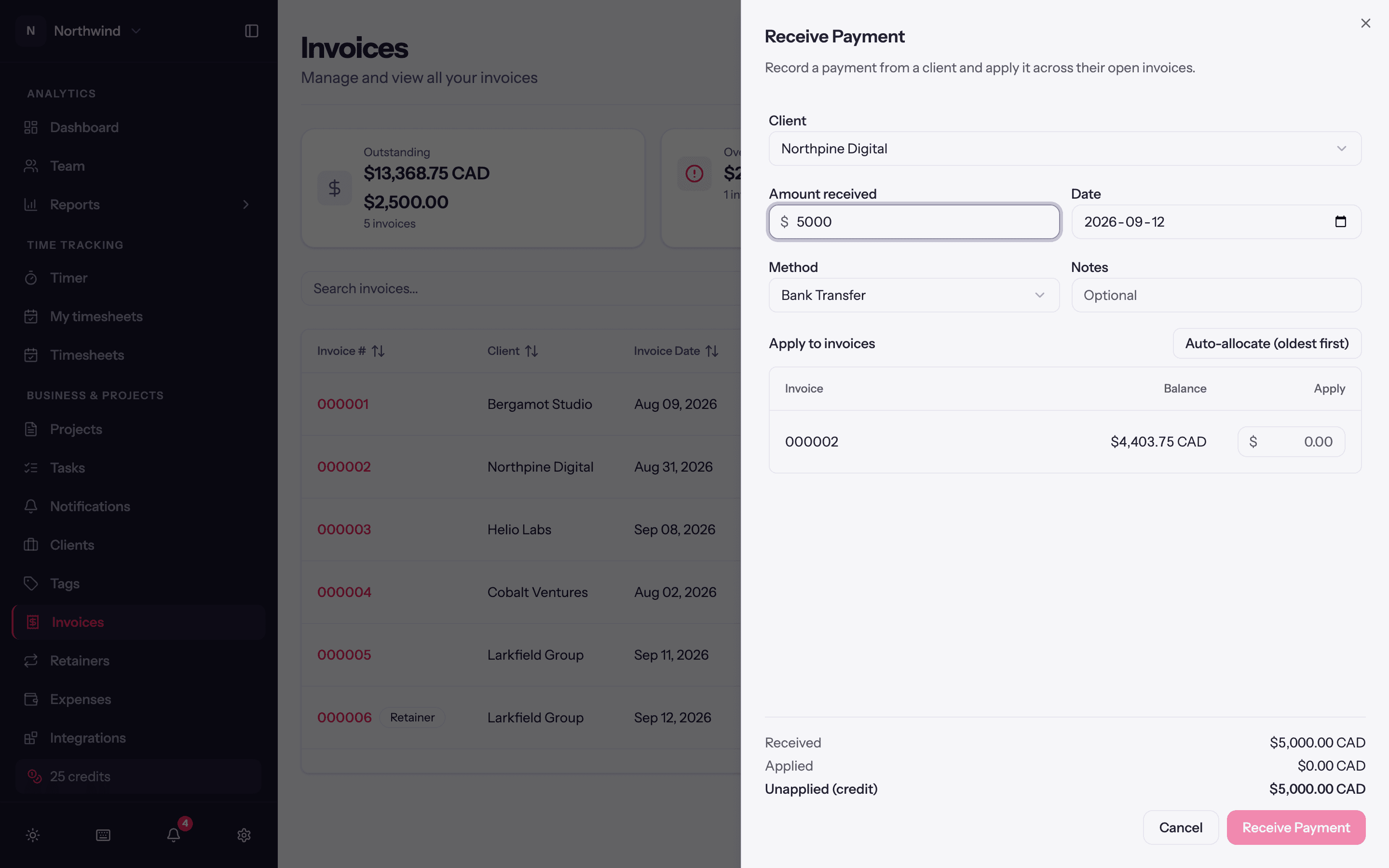
Pick the Client and enter the Amount received, the Date, Method and optional Notes.
Under Apply to invoices, the client's open invoices are listed oldest first with their balances. Type an Apply amount on each row, or click Auto-allocate (oldest first) to spread the money automatically.
The footer shows Received, Applied and Unapplied (credit). Whatever you leave unapplied becomes credit on account for that client. Applying more than you received is blocked.
Credit on account
Overpayments and unapplied amounts sit as credit on the client. On any of that client's invoices with a balance due, Apply credit in the ⋯ menu lets you apply some or all of it (Amount to apply), and the Receive Payment sheet shows Credit on account for the client so you can use it up there.
Accounting sync
When QuickBooks or Xero is connected with Sync payments on, each payment you record here is pushed to the ledger against the synced invoice. See Integrations.