Tell AI
Describe or dictate what you did and review the entries Quanta extracts, or let AI fill in the entry bar for you.
Quanta's AI features turn plain language into time entries. There are two of them on the Timer page, and both need AI to be switched on for the workspace and for you personally (see Turning it off).
Tell AI: many entries from one description
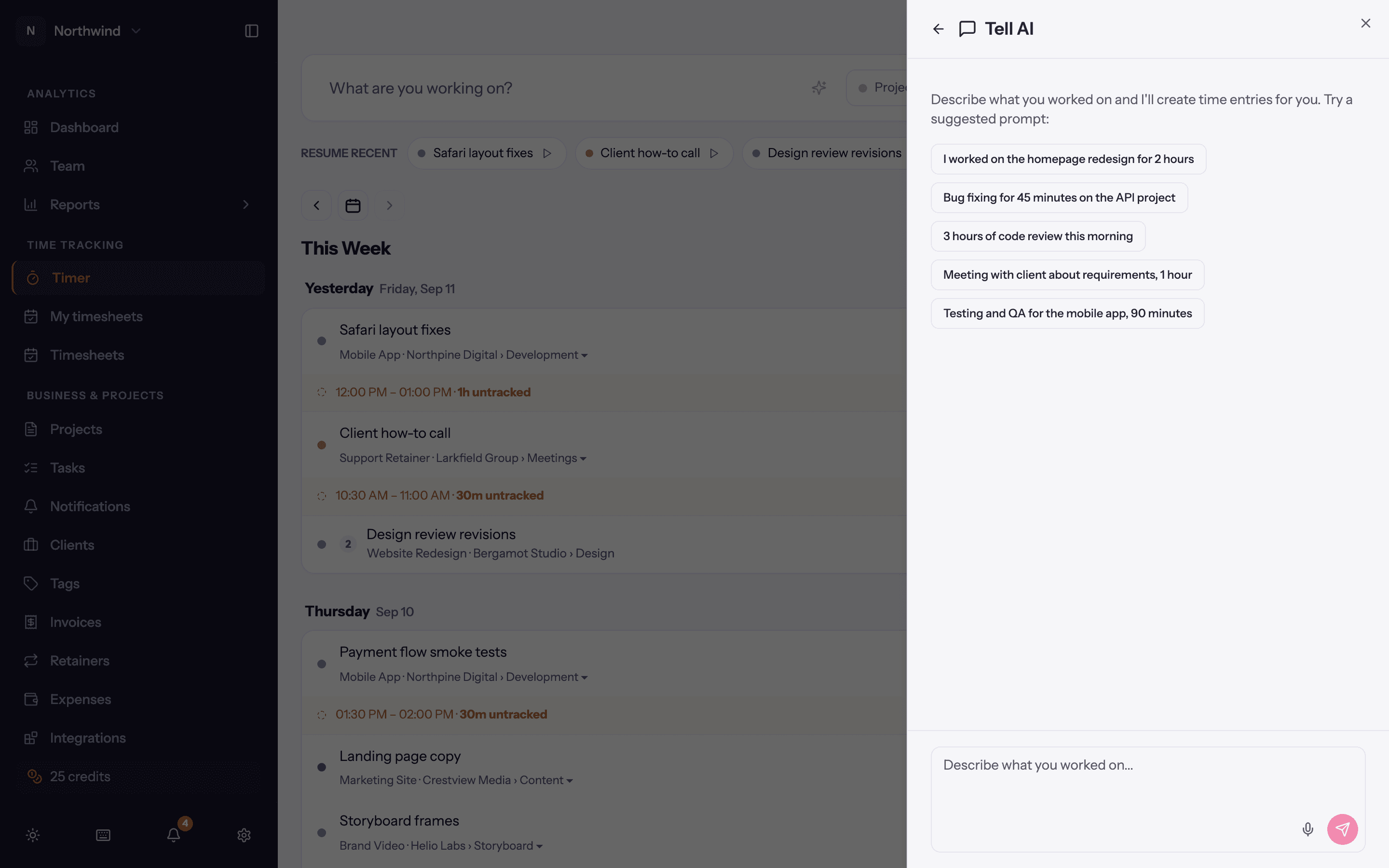
Click Tell AI in the timer toolbar. A panel opens listing your past dictations; click New dictation.
Type in Describe what you worked on..., or click the microphone and speak. Something like "I worked on the homepage redesign for 2 hours, then bug fixing for 45 minutes on the API project, and a one hour client meeting about requirements". The panel suggests a few example phrasings if you are unsure.
Send it. Quanta replies with what it extracted, for example "I extracted 3 time entries (3h 45m total) and staged them for review", and how many credits that used.
Close the panel. The staged entries sit in your timer list with a banner: 3 staged entries from Tell AI, with Save All and Discard. Fix anything that is wrong in place (project, duration, tags), then Save All.
Each dictation is a conversation you can return to, so you can say "actually the meeting was 90 minutes" and get a corrected set.
The AI picks projects and tasks by name from the ones you can log time to. Pinning what you are currently working on in My Workspace makes it noticeably more accurate.
AI fill: complete the entry bar
Typed a description of at least 10 characters into the entry bar? Click the sparkles button next to it (or press ⌘ ⇧ J / Ctrl Shift J). Quanta fills in the project, tags and, in Manual mode, the duration and start time from what you wrote, and leaves the bar for you to check before you press Start or Add entry. It is greyed out while a timer is running.
Voice
The microphone in the Tell AI panel (and the floating microphone button on smaller screens) records until you tap Submit, then transcribes and extracts entries in the same way. Your browser will ask for microphone permission the first time.
Credits
AI features use credits: one per time entry the AI creates. With AI on, the sidebar shows your remaining credits. Every workspace gets a monthly allowance, admins can buy more under Administration → Credits, and each person has a monthly allowance an admin can raise. When you are out of credits the panel says so instead of processing. See AI credits.
Turning it off
- For yourself: User Settings → AI Features → untick Use AI features. Nothing you type is sent to an AI provider after that.
- For the workspace: Workspace Settings → General → AI features. This hides Tell AI, AI fill, voice and AI Insights for everyone.